Kiki's Software Studio
表示言語:英語日本語

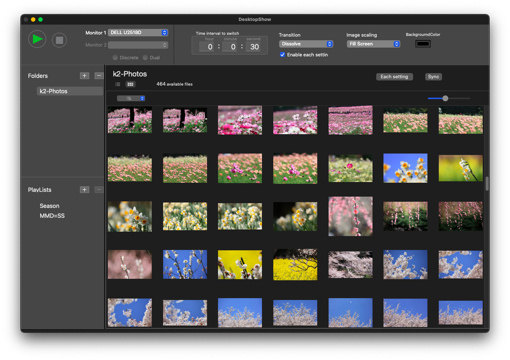
Desktop picture Changer for Mac

DesktopShow
Overview
More freedom and flexibility in the standard Mac desktop picture display function.
▷ You can create a playlist like a music app, register your favorite pictures,
and create your favorite list.
▷ Settings such as switching interval and scaling can be set for each folder or playlist.
▷ Furthermore! , Favorite pictures can be displayed for a long time,
and continuous group photos can be set for a short time.
▷ You can choose to show or not images on the desktop that you want to keep in a folder
but are not suitable for wallpaper.
▷ Equipped with 13 types of transitions.
How to use
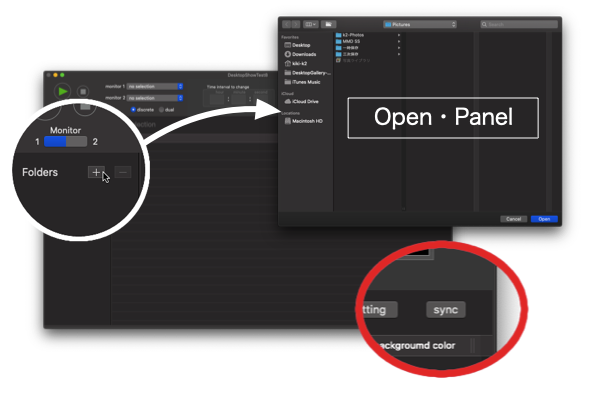
Add folder
Select a folder from the open panel that opens when you click the + button in the folder list. If the selected folder contains subfolders, it will be displayed hierarchically. In the table view that displays the file list, you cannot add or delete individual files. When a file is added or deleted in the Finder, click the sync button at the top right of the table view to update the list of files. The individual settings for each file are inherited unless the file name or directory structure is changed.
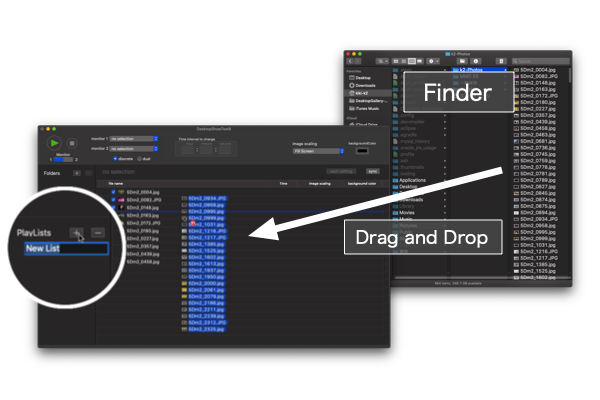
Add new playlist
Click the + button and enter the name of the new playlist. Contents can be added to the list by drag and drop from the Finder. The order of the contents can be freely rearranged by drag and drop. To remove content from a playlist, use the context menu that appears when you right-click.
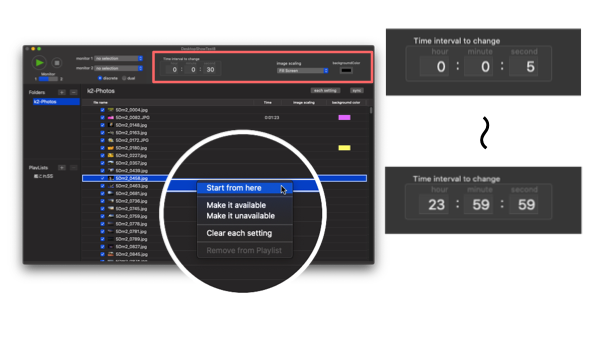
Folder and Playlist settings
Desktop picture settings (switching interval, scaling, background color) can be saved differently for each folder / playlist. The switching interval can be set in 1-second increments from a minimum of 5 seconds to a maximum of 23 hours 59 minutes 59 seconds.
In addition, the picture display can be started / restarted from any place (from the place selected in the file list view).
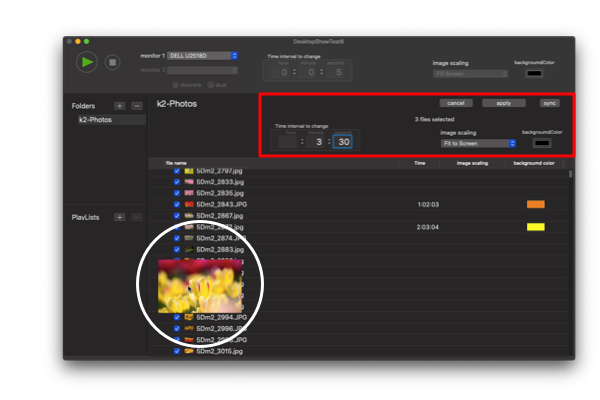
Individual content settings
Desktop picture display settings (switching interval, scaling, background color) can be set differently for each folder / playlist and for each content.
You can set the desktop display settings for each picture. For example, you can display your favorite picture for a long time, shorten the time for a series of group photos, or set the background color to match the picture when there is a margin on the screen.
You can also click the thumbnail of the file list view to display a larger thumbnail.
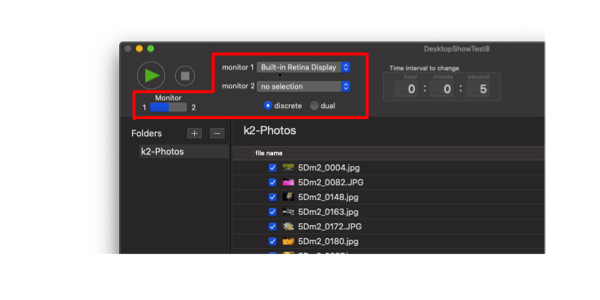
Monitor selection
The current version supports up to two multi-displays, including the built-in display on your Mac.
When there are two monitors, you can select two modes: discrete mode, which displays different folders or playlists on each monitor, and dual mode, which displays the same folder or playlist on two monitors.
If two or more monitors are connected when the app is launched, first select the monitor from the monitor selection pop-up button.
Specification
・The following 5 image formats are supported. JPEG・PNG・TIFF・PICT and GIF.
・Select the files to add to the folder or playlist from the following locations.
▷ In the home directory of the logged-in user.
▷ External storage physically connected to your Mac with a cable.
※ For files read from external storage, even if you unmount the storage,
remounting it will restore the link to the file.
・Like the Music app, registering folders and files in the DesktopShow app
just keeps a reference. Deleting a folder or file registered with the
DesktopShow app has no effect on the actual file.
・The CrossDissolve effect of the transition is effective when the background color
of the previous image and the next image are the same. If the background color is
different before and after, the CrossDissolve effect will switch to dissolve.
・If you use a virtual desktop (spaces) with Mission Control, the same desktop (image)
is displayed in all spaces.
・It is a specification of this application that there is no menu item "hide DesktopShow"
in the "DesktopShow" menu of the menu bar. Normally, minimize the main window
of the application to the Doc, and use the application.
Trouble shooting
Known issues1 : "Page curl" transition conflicts with amazon prime video.
When your select "Page curl" for the transition and play the program with amazon prime video in the browser, the transition effect does not work. The display of prime video may also be disturbed. When watching amazon prime video, please use a transition type other than ”Page curl”. (There is no problem when watching Youtube.)
Continuing to use the "Page curl" transition will only cancel the transition effect and will not prevent you from switching between desktop picturs displays.
Known issues2 : Transition effects are not drawn in the menu bar.
This issue is a MacOS spec-based phenomenon, not an app bug. If you don't want this look, I recommend that you check [Doc & Menu Bar] -> [Automatically hide and show the menu bar] (For MacOS 11)in System Preferences to normally hide the menu bar.
Privacy policy
The current version of this application does not collect, record or handle personal information of users.
Version information
Current version : Version 1.6
Corresponding OS : macOS Catalina(10.15)or later
Version history
Version 1.6 (2021/6):Improved operability and addition of transitions.
Version 1.5 (2021/6):Added shuffle playback and random transition features.
Enhanced synchronization with Finder and implementation of undo / redo.
Version 1.4 (2021/4):Improved operability by adding a list of samurai rails.
Version 1.3 (2021/3):Improved operability and addition of transitions.
Version 1.2 (2021/2):Addition of transitions and bug fixes.
Version 1.1 (2021/1):Addition of transitions and bug fixes.
Version 1.0 (2020/12)